
Vertical tabs and Spaces, in Chrome’s side panel
Katip turns the side panel into a sidebar for your tabs. Give each project its own Space, pin the pages you come back to, and find anything with Spotlight.
Coming soon to the Chrome Web Store
View on GitHubFree and open source · Chrome 120 or later
Spaces
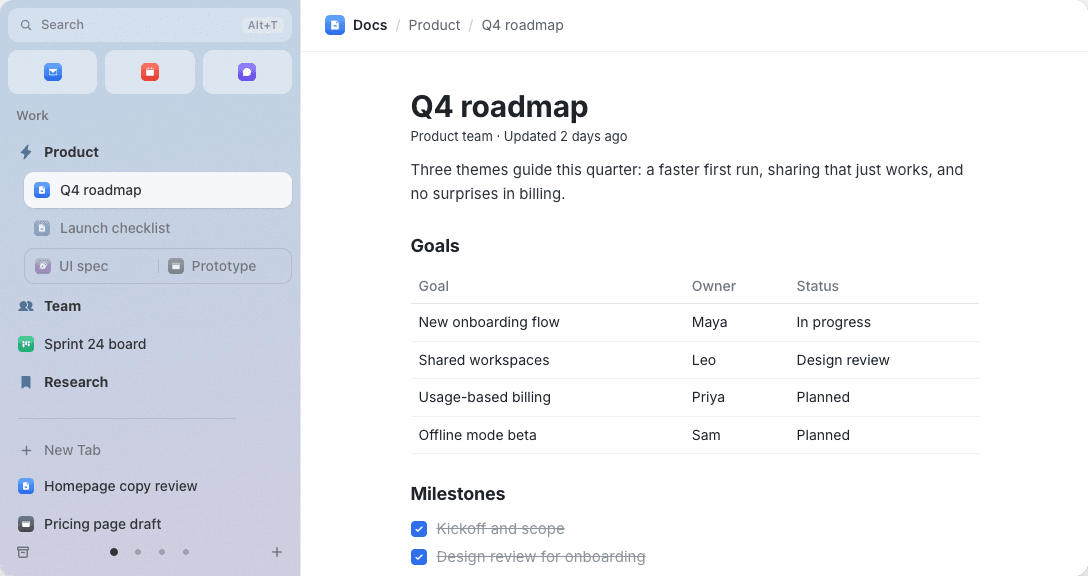
Your tabs, organized into Spaces
Pin the tabs you keep, file them in folders, and switch Spaces with a click.
A Space for each project
Keep separate sets of tabs for work, side projects or hobbies. Each Space has its own pinned tabs, open tabs and colors.
Pinned tabs and folders
Pins are saved as bookmarks, so Chrome Sync carries them to your other computers. Nest folders, give them icons, and drag anything anywhere.
Favorites
Chrome’s pinned tabs, shown as a row of icons at the top of the side panel.
Spotlight
Find anything. Run any command.
Search your tabs, pins and Spaces, or run a command, right from the keyboard.
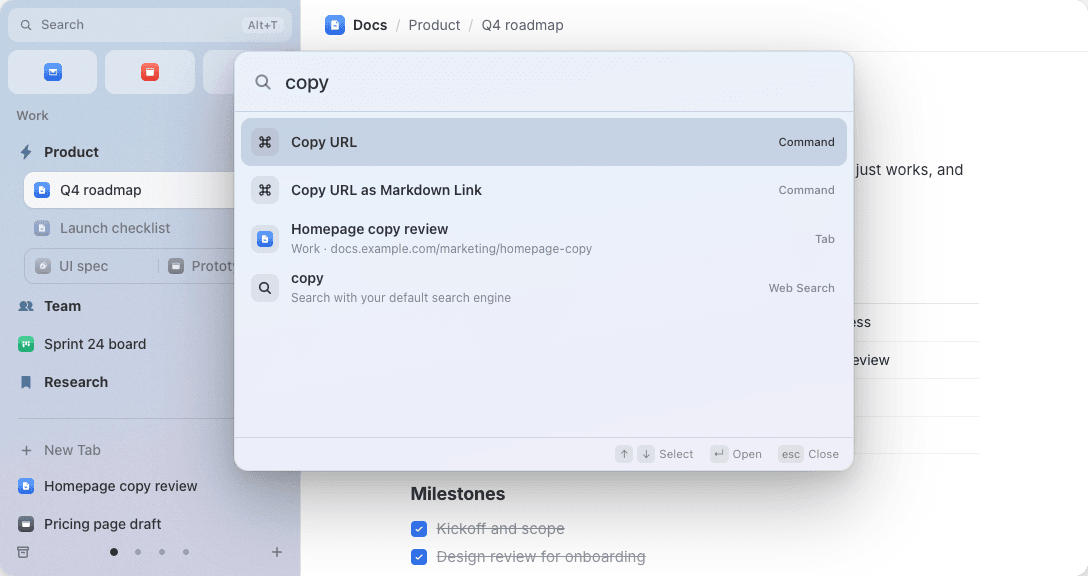
One box for everything
Open tabs, pins, Spaces, history and the web, all from a single search box.
Commands at hand
Copy the URL or a Markdown link, pin a tab, move it to another Space, and more. Press Tab on an empty box to search commands only.
History, if you want it
Searching your history is optional and asks for permission first. The search runs on your device.
Split view
Split view, pinned for later
Keep two pages side by side, and reopen the pair from a single pin.
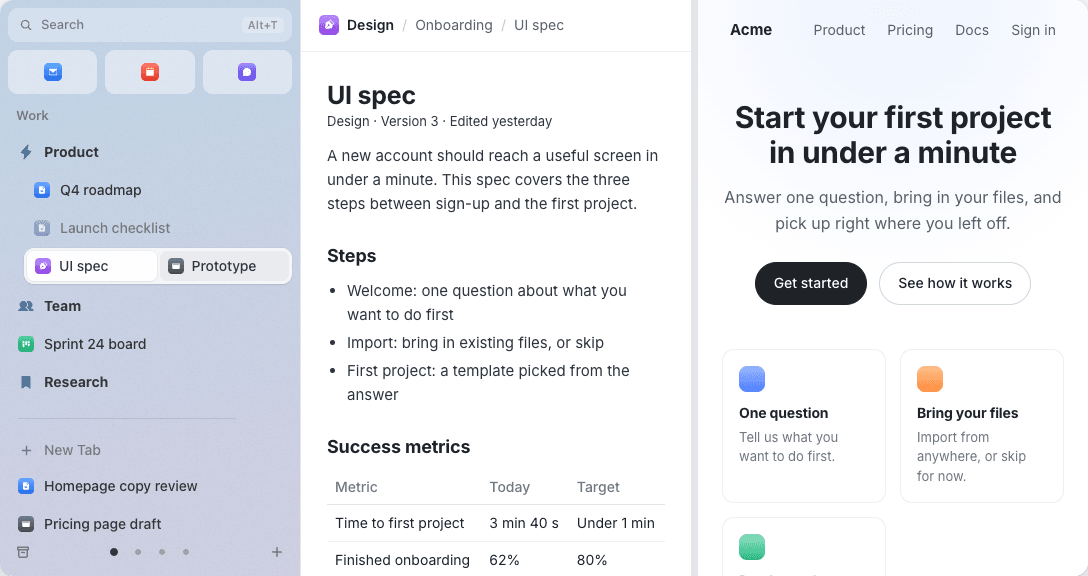
Drop a tab on a tab
Drag one tab onto another to see the two pages side by side.
Pin the pair
Pin a split view, and it opens again as the same two pages, side by side.
Chrome 155 or later
Katip builds on Chrome’s own split view, which arrived in Chrome 155.
Themes
Colors and themes for every Space
Give each Space its own colors, a gradient, and a light or dark look.
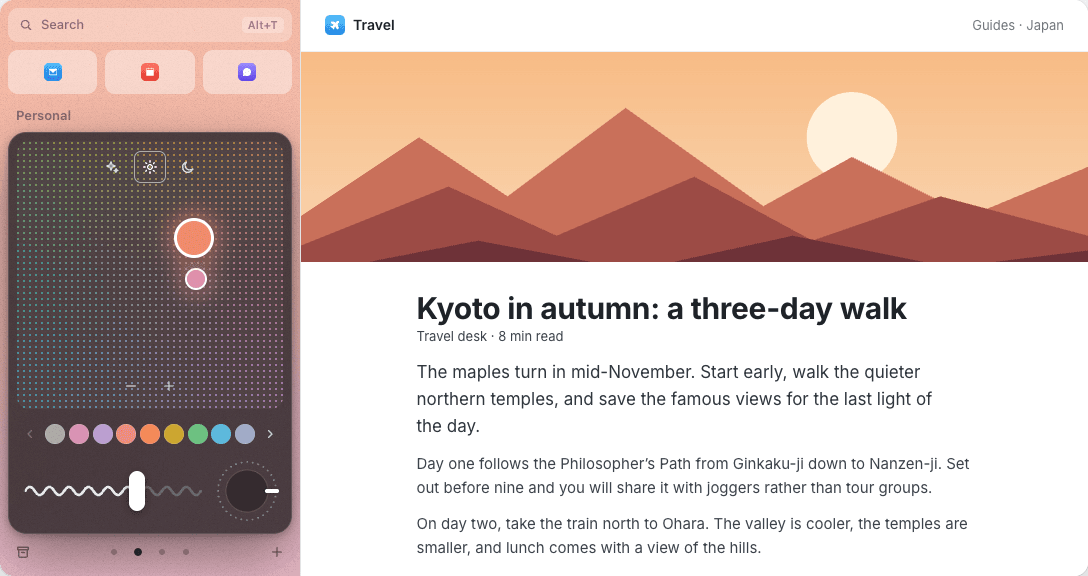
Know where you are
A Space’s colors fill the side panel, so you can tell at a glance which Space you’re in.
Gradients or solid colors
Start from a preset or pick your own colors, then set the intensity and add a little grain.
Light, dark or auto
Each Space can follow your system or stay light or dark, and Spotlight follows along.
And more
The small things that keep a sidebar out of your way.
Live folders
A folder that lists your Gmail inbox or a label, or your GitHub review requests, pull requests, issues and mentions, using the accounts you’re already signed in to.
Archive
Temporary tabs you haven’t used for a while are closed and kept in the archive, ready to bring back.
Keyboard shortcuts
Open the side panel or Spotlight, and copy the current URL or a Markdown link. Choose your own keys in Chrome’s shortcut settings.
Export and import
Export everything to a file, and import it again whenever you need to.
Four languages
English, Japanese, Simplified Chinese and Spanish.
Coming from Arc?
Move over from Arc in a minute
Bring your Spaces and their colors, pinned tabs, folders, split views and Favorites over from Arc’s sidebar file.
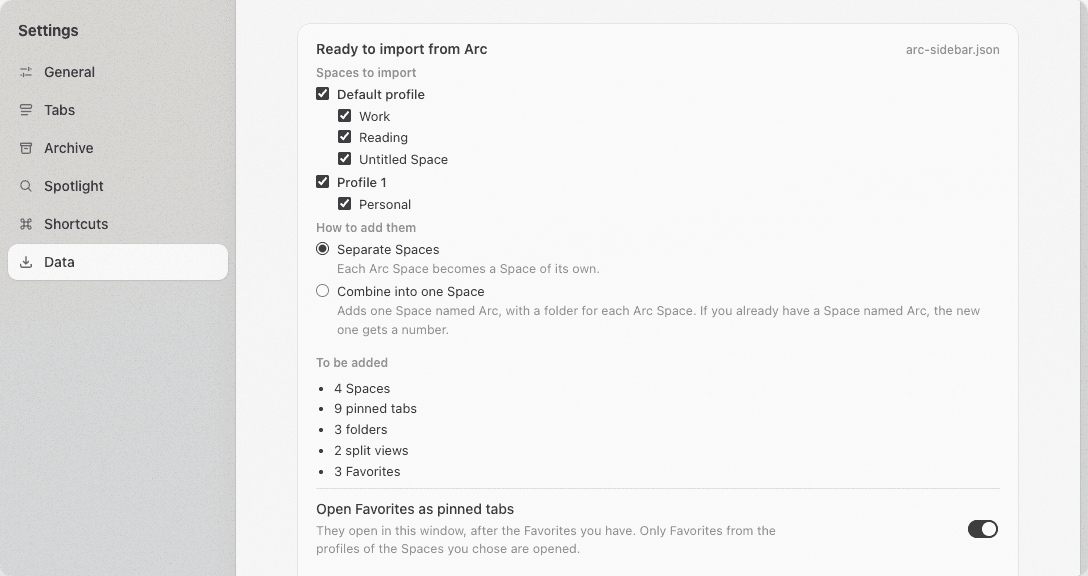
How to move over
- Open Katip’s settings and choose Data → Import from Arc.
- Choose Arc’s sidebar file,
StorableSidebar.json.- macOS
~/Press ⌘⇧G in the file dialog to paste the path.Library/ Application Support/ Arc/ StorableSidebar.json - Windows
%LOCALAPPDATA%\The file is in this folder.Packages\ TheBrowserCompany.Arc_…\ LocalCache\ Local\ Arc\
- Check the preview, then import.
- Katip only adds. Nothing you already have is changed or removed.
- The file is read inside your browser and never sent anywhere.
Privacy
Nothing leaves your browser
Katip has no server and collects nothing. Your Spaces, pins and settings live in Chrome’s own storage and bookmarks.
No server, no account
There’s nothing to sign up for. Katip sends nothing to its developer or to anyone else.
No tracking
No analytics, telemetry or ads, and no code loaded from the internet.
Live folders, when you allow them
Live folders talk to Gmail and GitHub directly from your browser, with the sign-in you already have, and only after you allow access to that site.
Open source
Free, and open source
All of Katip’s code is on GitHub under the MIT License. Read it, report an issue, or build on it. The name and logo aren’t covered by the license, so please give your version its own.
Coming soon to the Chrome Web Store
View on GitHubCan’t wait? Download a release from GitHub and load it unpacked at chrome://extensions.